Parents Management Module
The Parents Management module allows administrators to view, add, edit, and manage parent profiles within the system. Parent records are linked to student profiles, enabling effective communication, access control, and monitoring of student-related information.
1. Accessing Parents Management
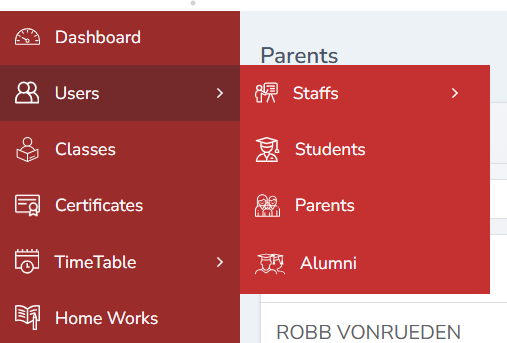
- Login with Admin credentials.
- From the left navigation pane, click Users.
- Select Parents.
2. Viewing Parent Details
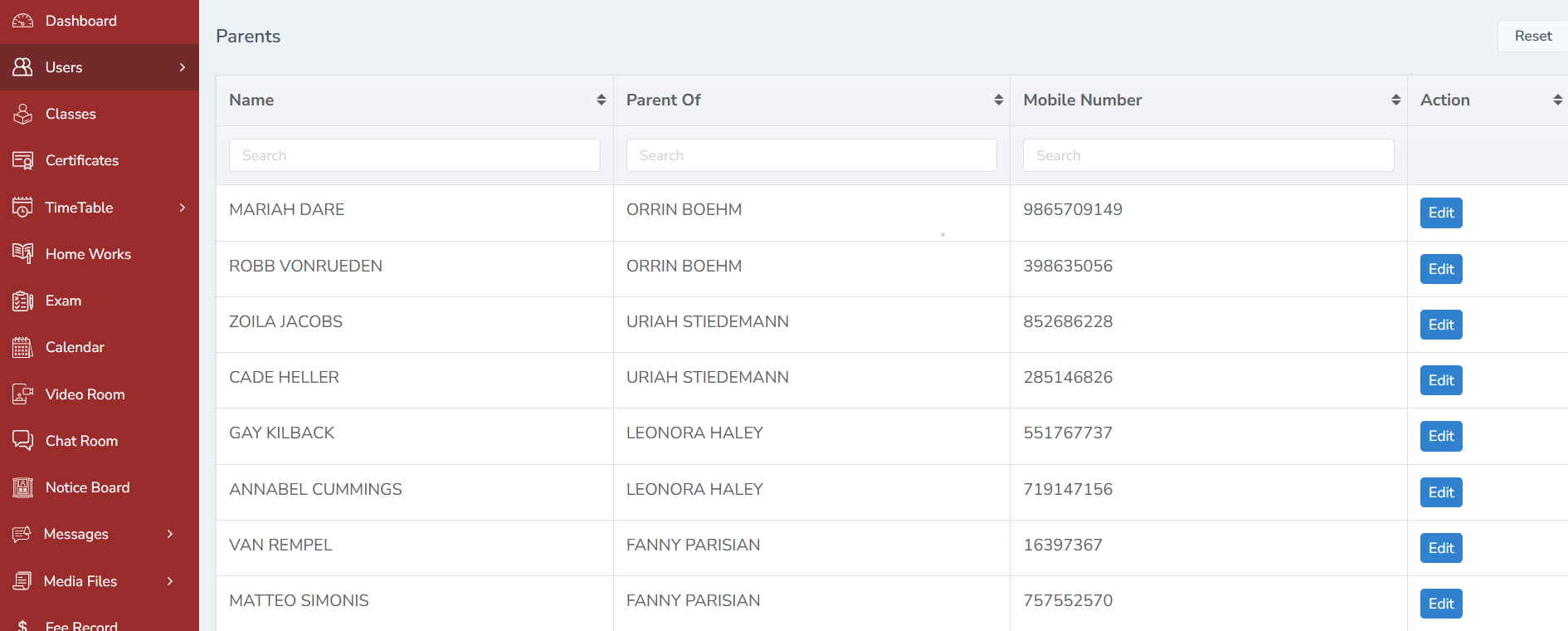
- A list of all registered parents will be displayed.
- Parent details such as name, contact information, and status can be viewed from this screen.
3. Editing Parent Details
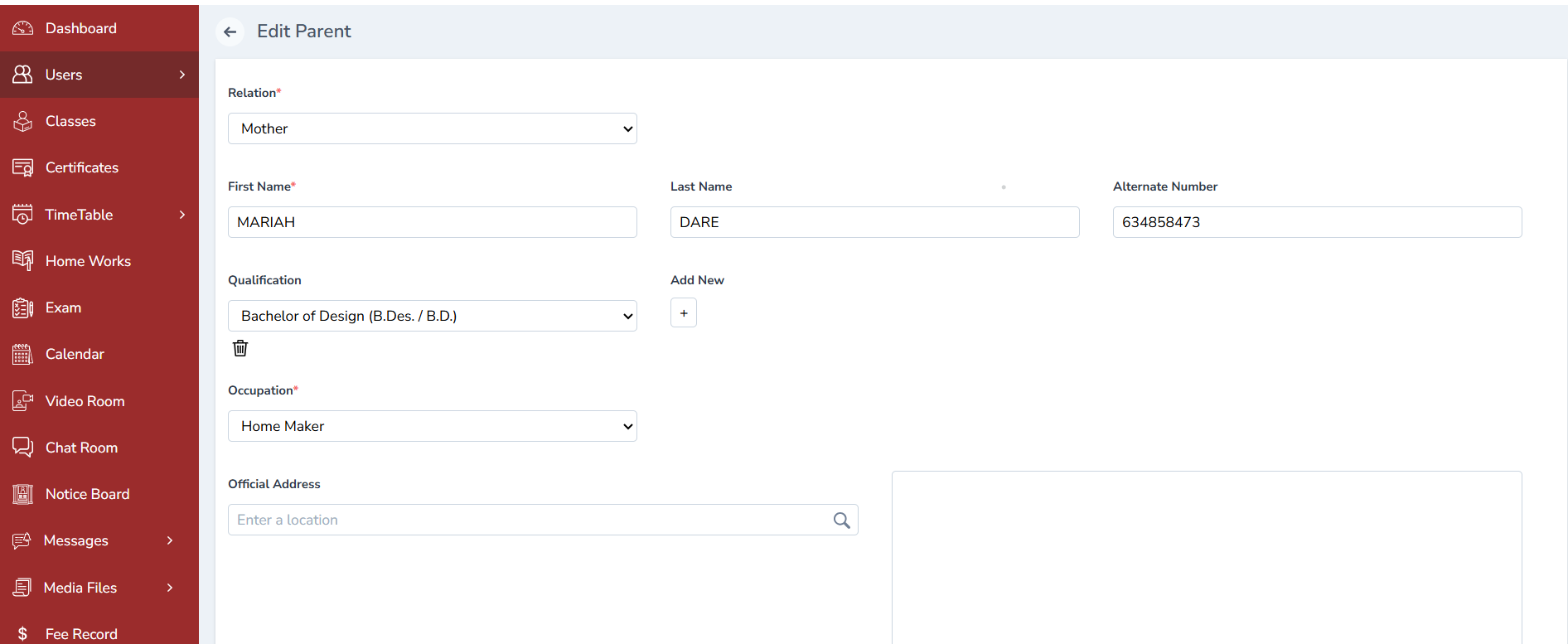
- Click the Edit button corresponding to the parent.
- Update the required details.
- Click Save.
- The updated information will be saved successfully.
4. How to Add a Parent
Parents are added through the Student Management module and automatically linked to the student profile.
Steps to Add a Parent
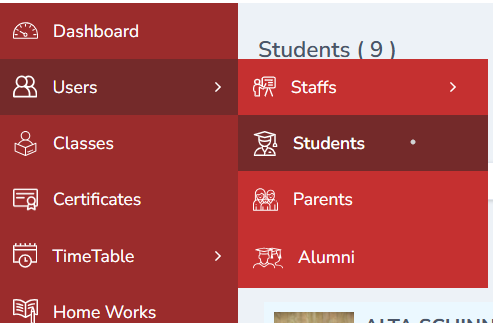
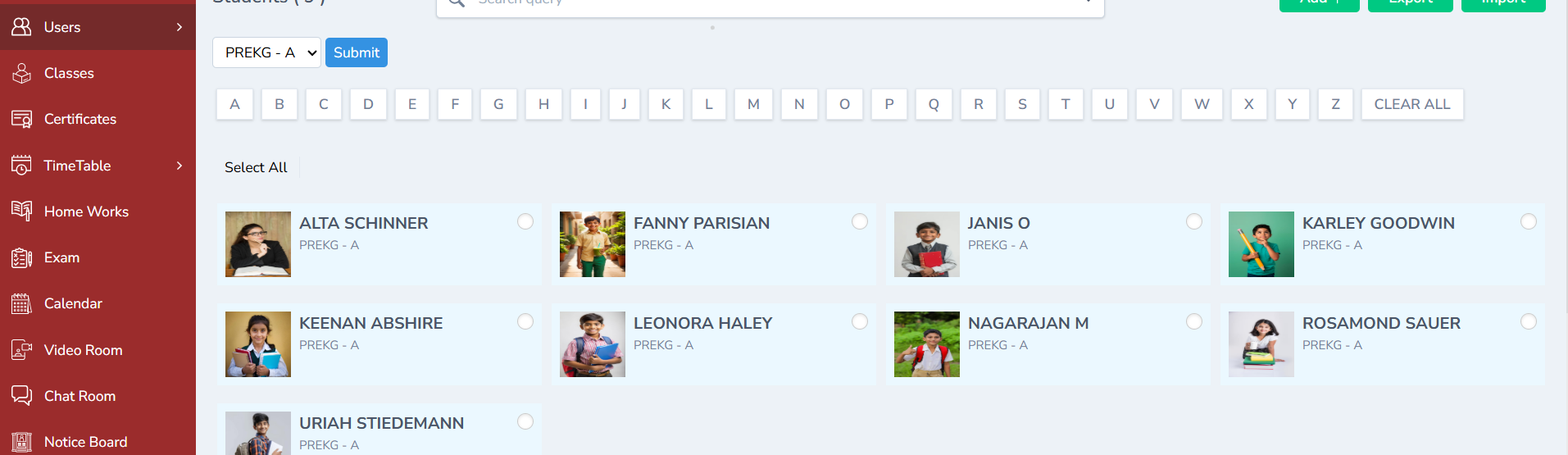
- From the admin dashboard, click Users.
- Select Students from the sub menu.
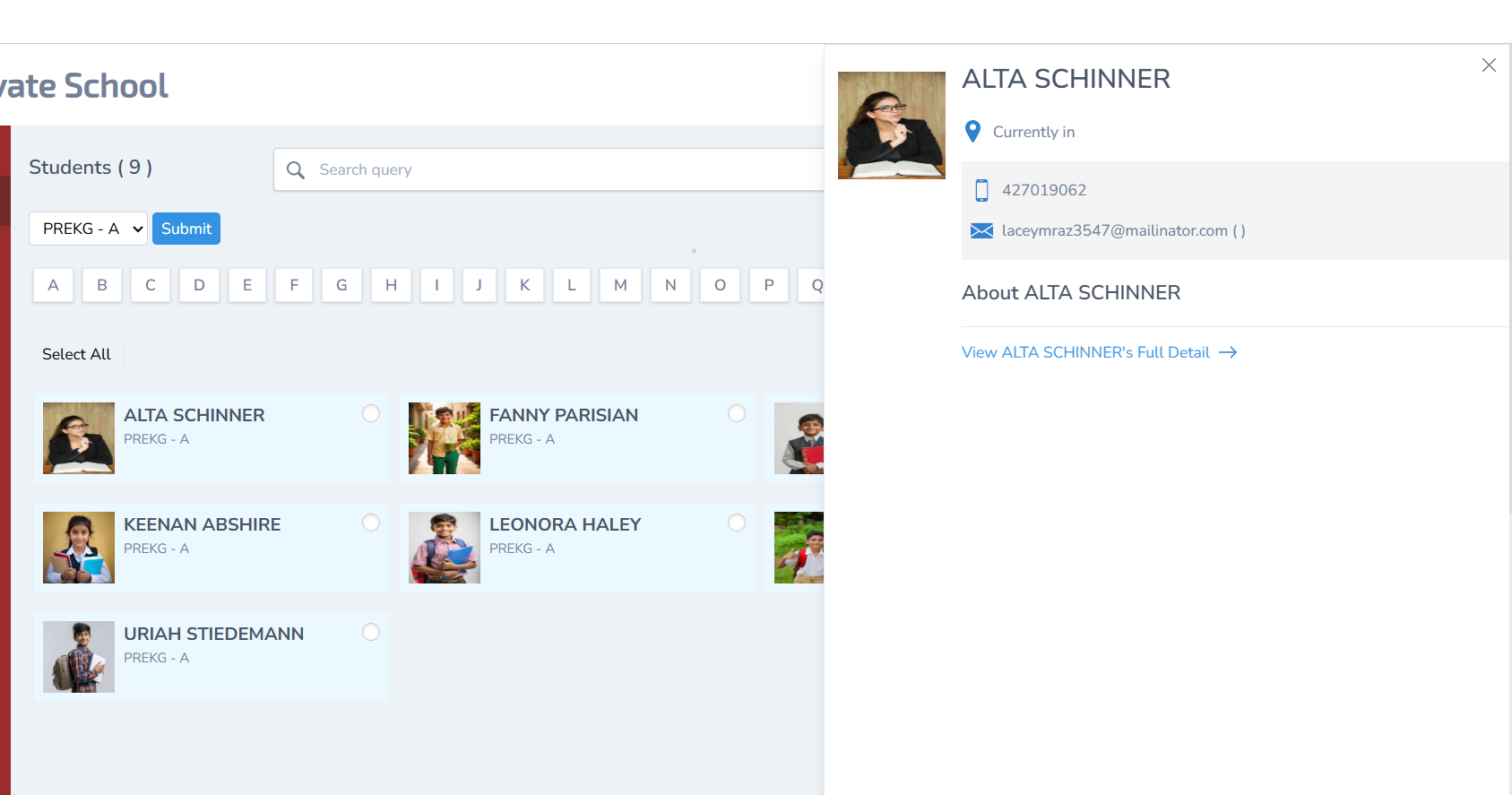
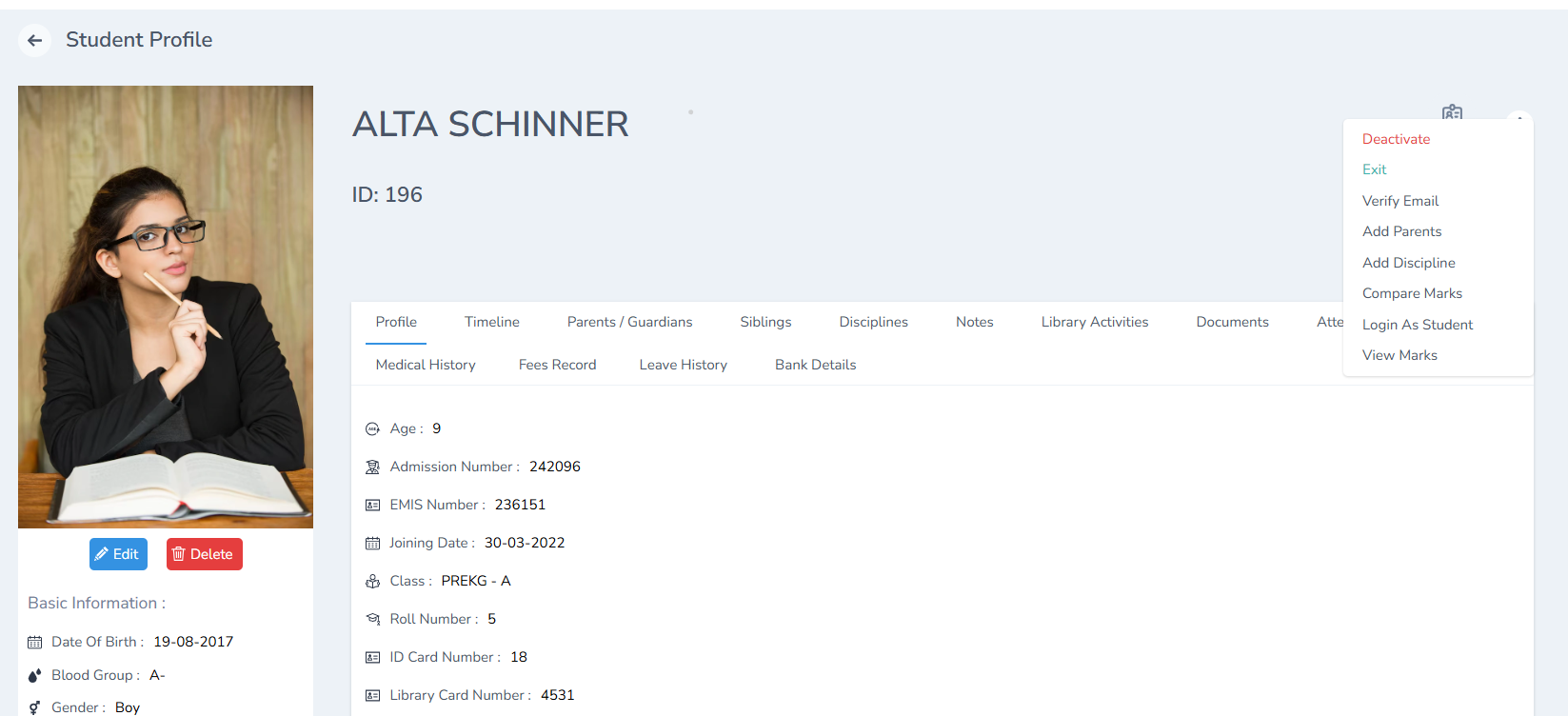
- Choose the required student and click View Full Profile.
- Click the three-dot (⋮) menu on the top-right corner.
- Select Add Parent.
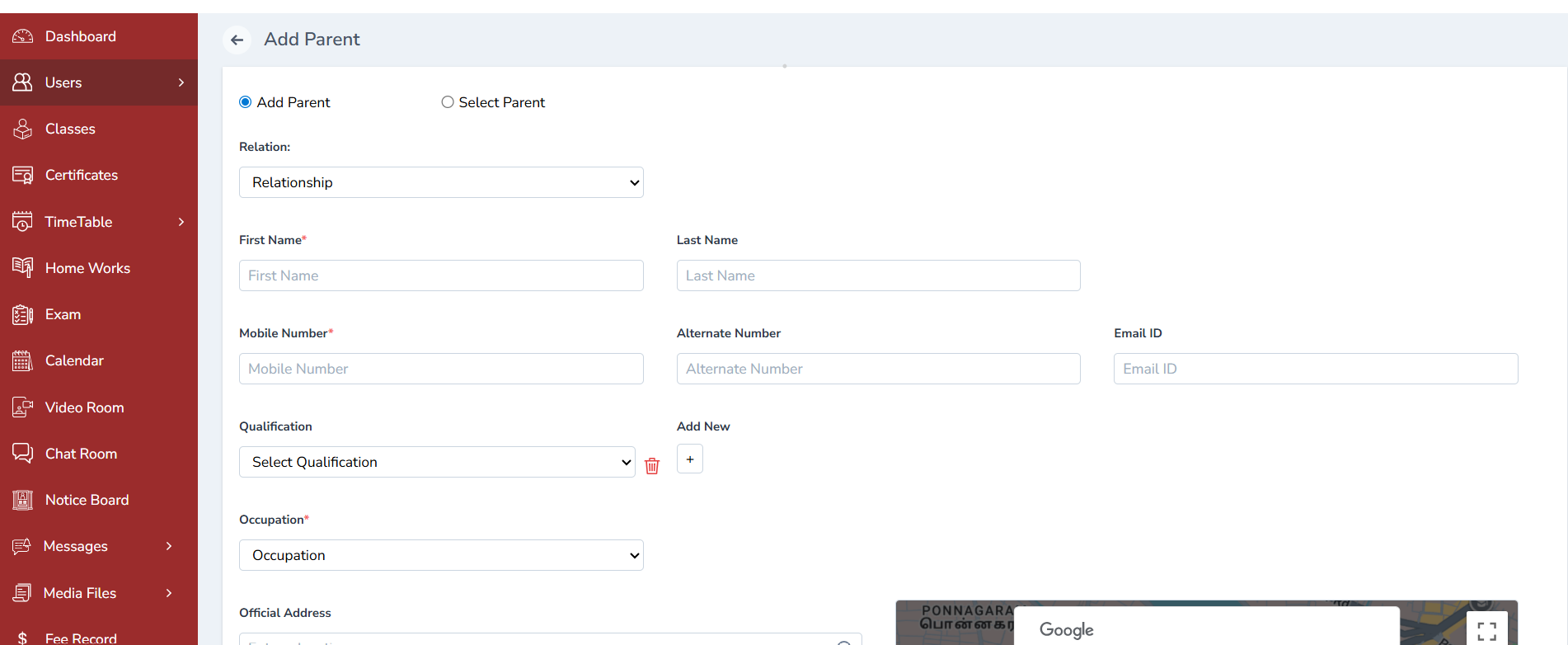
- Enter all required parent details.
- Click Submit.
The parent details will be:
- Added to the student’s profile
- Listed automatically in the Parents Management module
Note: The same procedure can be followed to add Mother or Guardian details.

5. Managing Parent Accounts
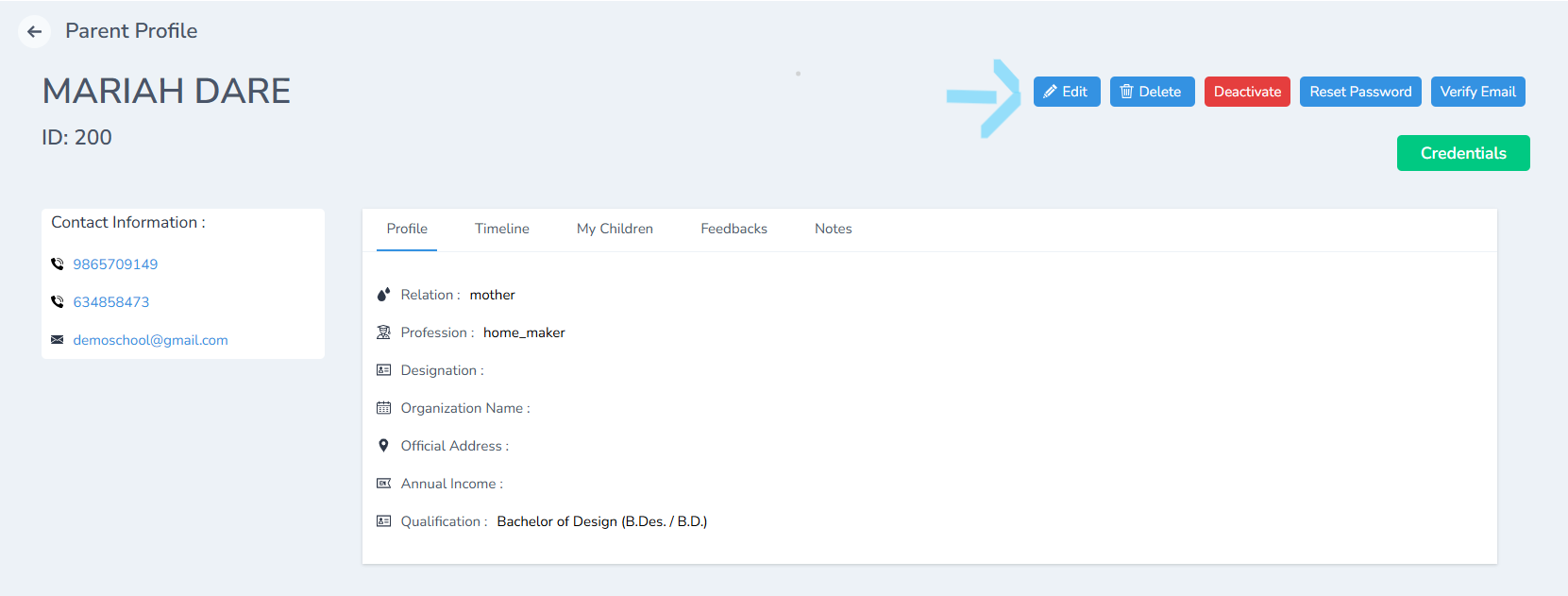
The following actions are available in the Parents Management screen: Edit Parent
- Click the Edit (✎) icon to modify parent details.
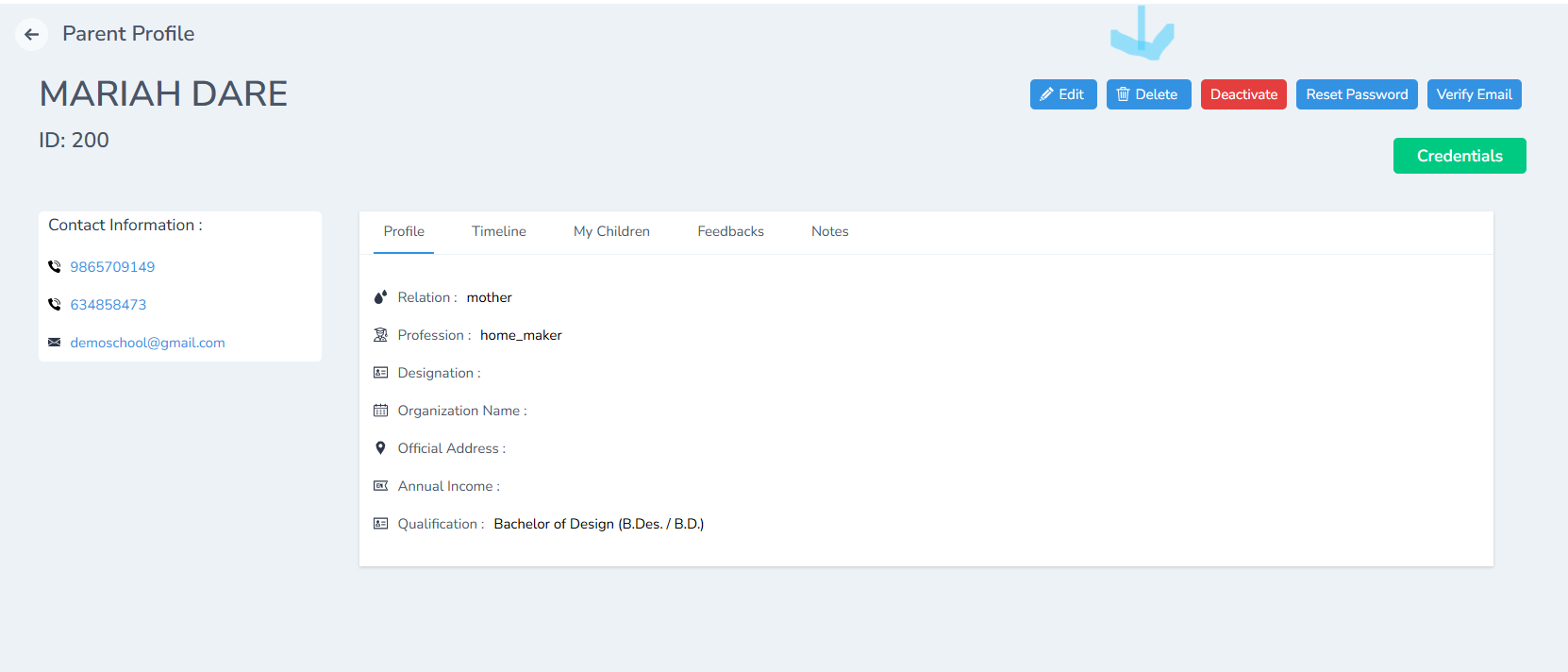
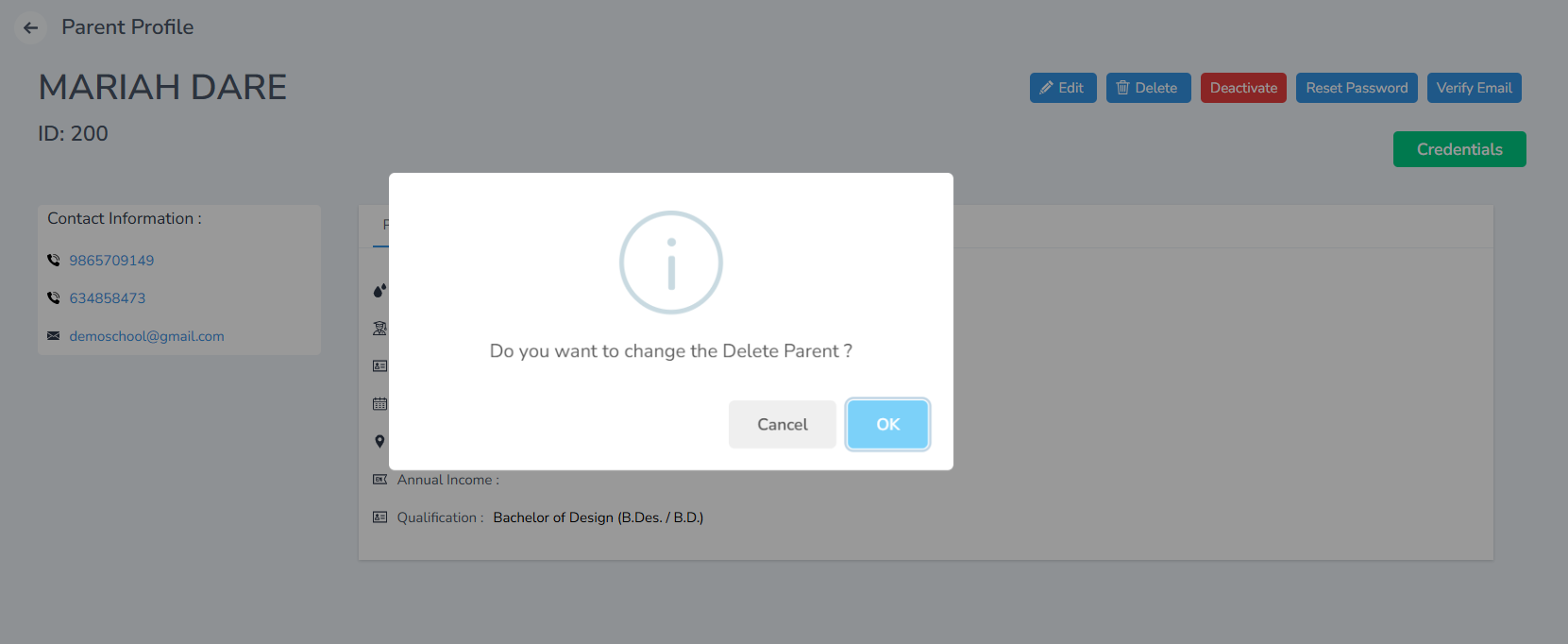
Delete Parent
- Click the Delete (🗑) icon to remove the parent record.
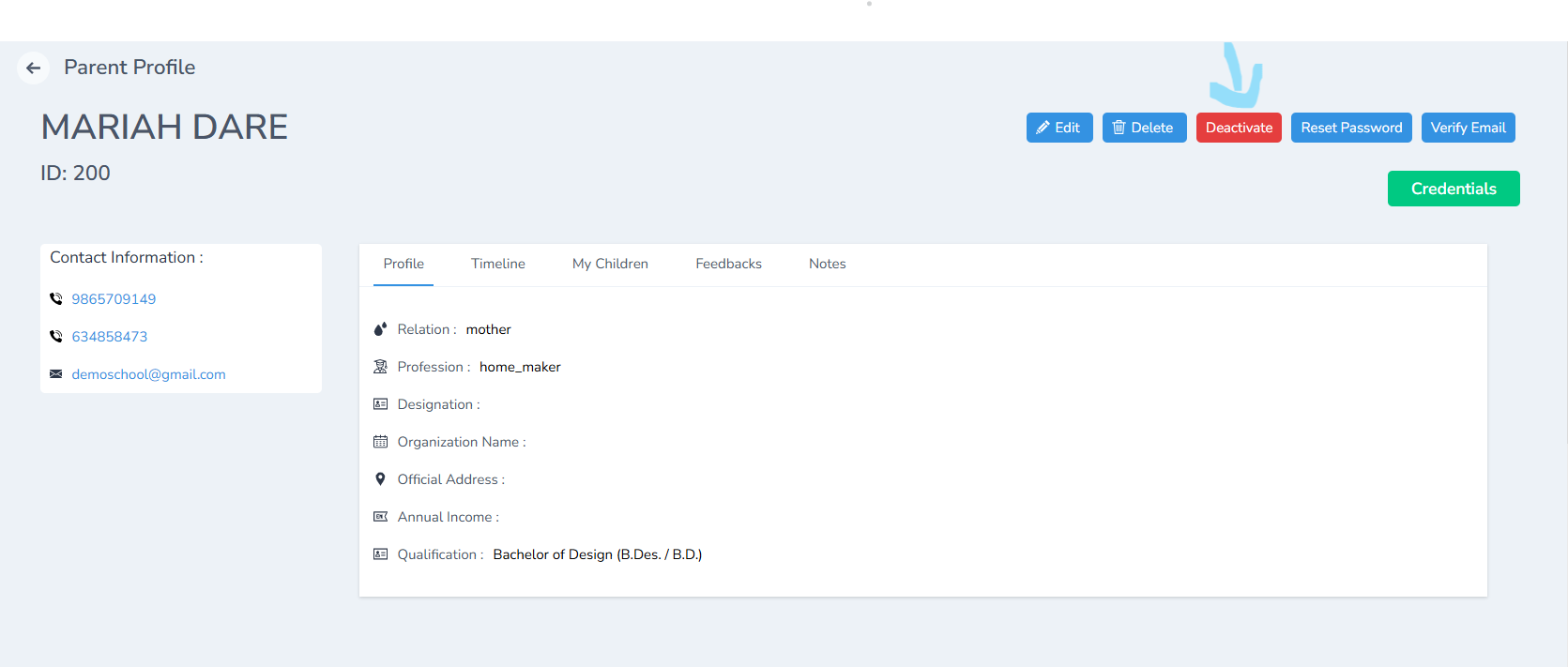
Deactivate Parent
- Click the Deactivate option to disable parent access temporarily.
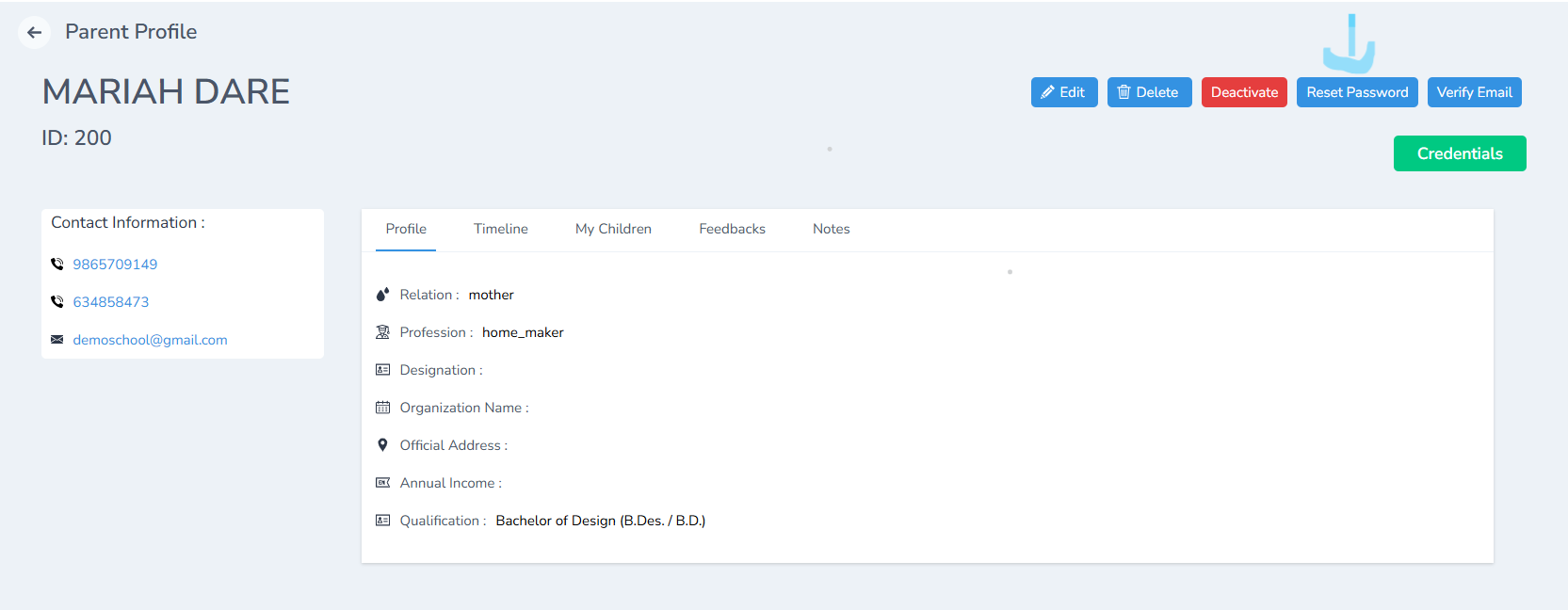
Reset Password
- Click Reset Password to generate a new password for the parent.
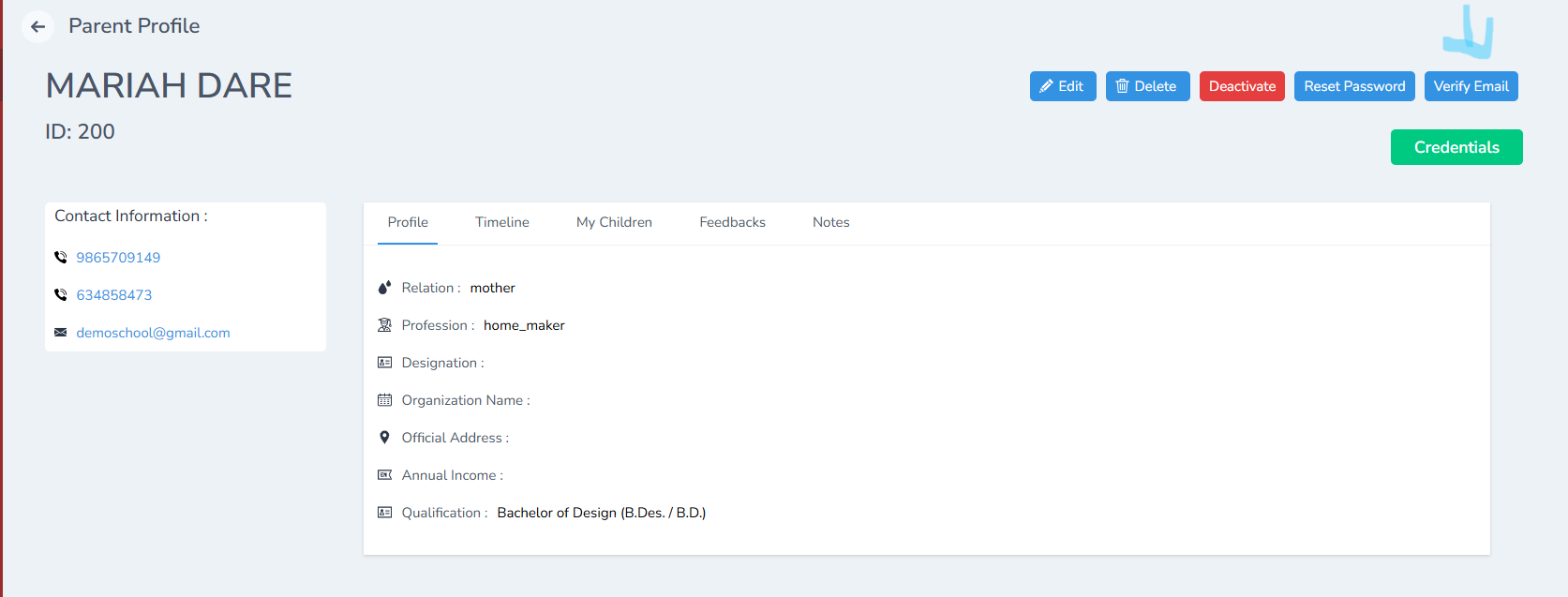
Verify Email
- Click Verify Email to confirm the parent’s email address.
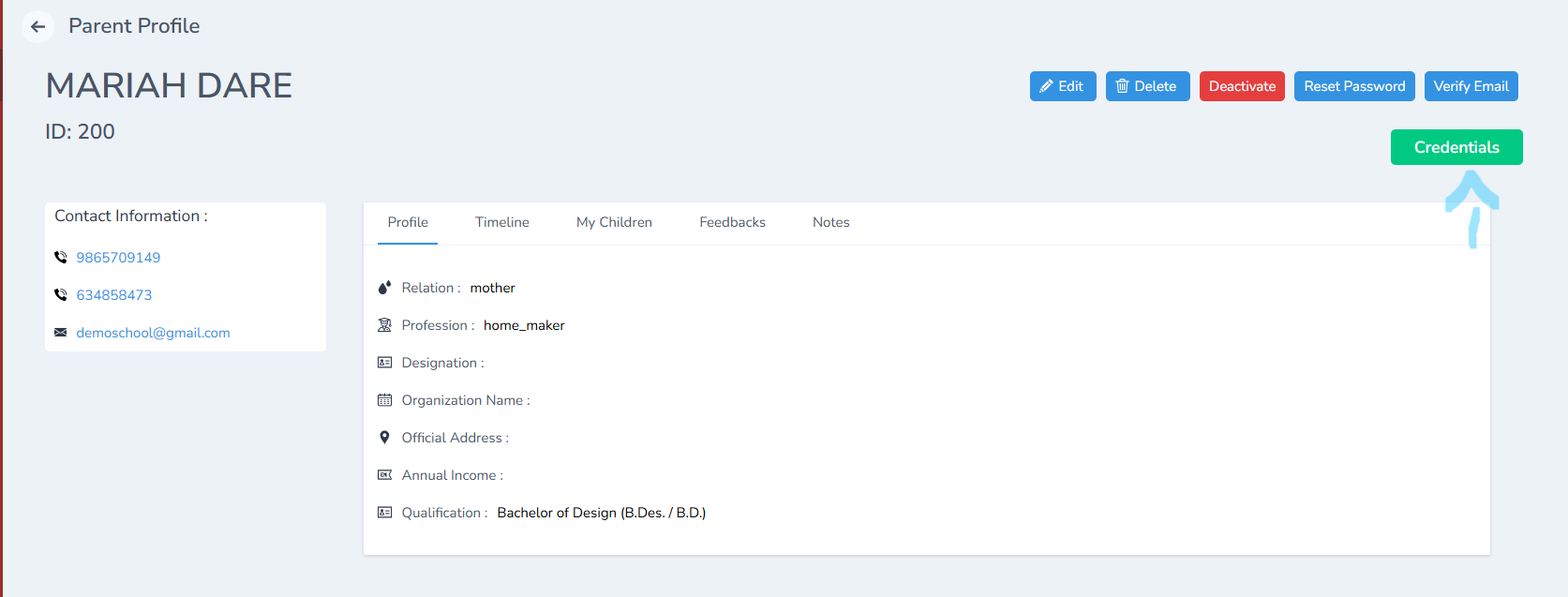
View Credentials
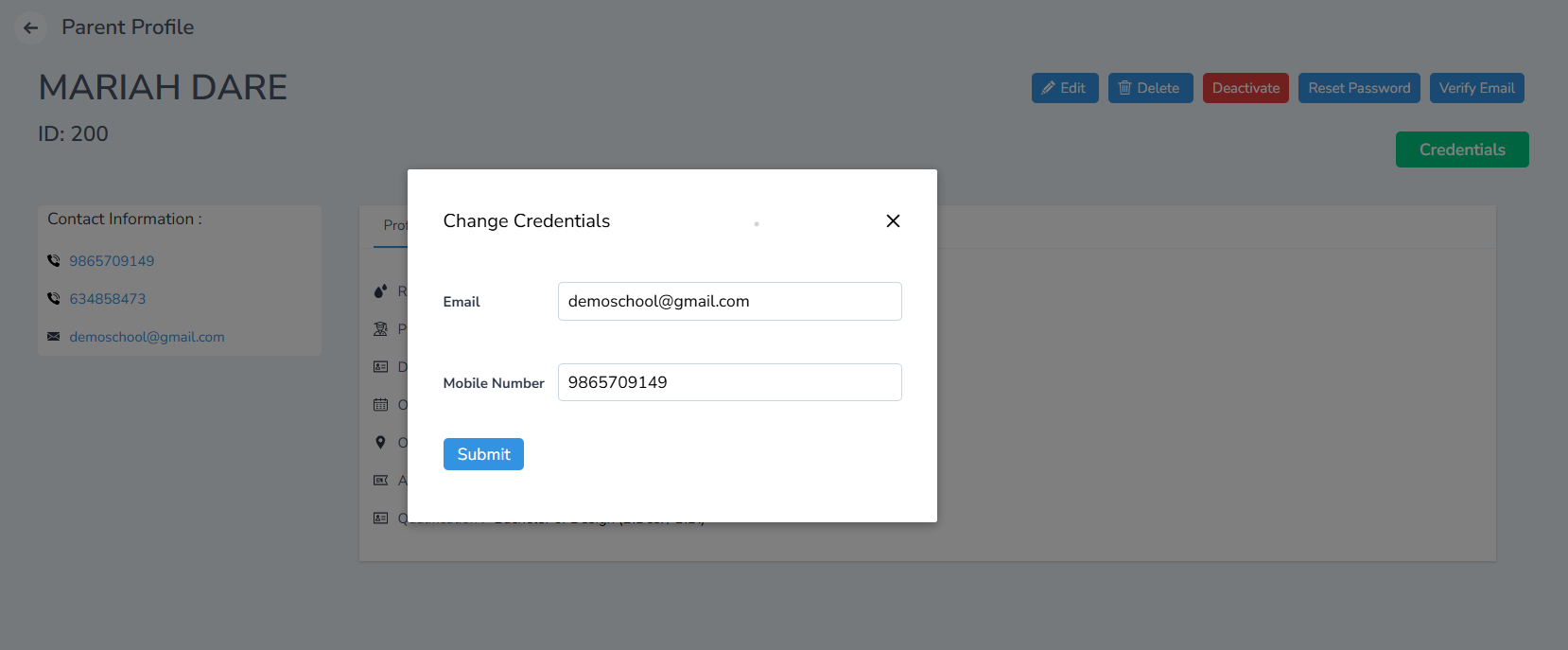
- Click the Credentials tab to view:
- Email ID
- Mobile Number.