Leave Management and Staff Attendance
Module Overview
GegoK12 combines Leave Management and Staff Attendance so schools can:
- Define their own leave types and rules (e.g., CL, SL, ML).
- Allow Teachers to apply for leave online via web or mobile.
- Let Principals approve/reject leave and ensure academic continuity.
- Ensure Admins mark staff attendance daily with two sessions – Forenoon & Afternoon.
Important:
- Leave Master is typically configured once per academic year and then used throughout.
- Attendance is updated every working day.
Leave Master Settings (Admin)
Purpose
The Leave Master controls the list of leave types available in your school (e.g., Casual Leave, Sick Leave, Maternity Leave). These types appear in:
- Teacher leave application screens
- Principal approval screens


The Admin configures this once per year or whenever leave policies change.
Role & Access
- Role of logged-in user: Admin / System Administrator
- Login using: Admin credentials created during onboarding
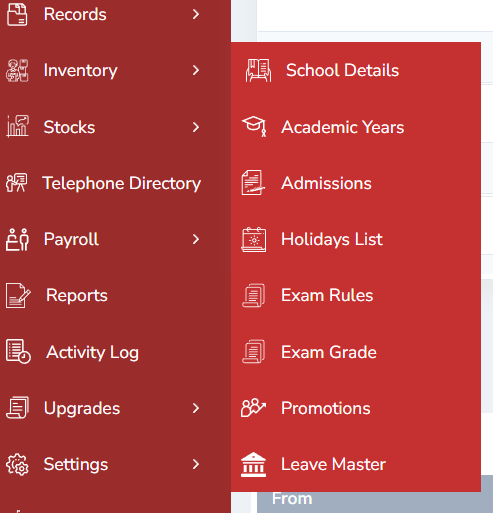
Only users with Admin rights can access Settings → Leave Master.
Accessing Leave Master
1.Log in as Admin _ Open your GegoK12 Admin URL in the browser.
- Enter your Admin username and password.
- Click Login.
2.Open the Settings module
- After login, you will land on the Admin Dashboard.
- In the left pane (sidebar), locate and click “Settings”.
3.Open Leave Master
- Under Settings or Core Modules, click “Leave Master”. The system loads the Leave Master List View.

Understanding the Leave Master List View
The Leave Master List View typically shows:
- Leave Name – Full name (e.g., “Casual Leave”).
- Short Code – Shorthand (e.g., “CL”).
- Max Days / Year – If configured..
- Actions – Edit / Delete icons.
This page also has an “Add New” button at the top-right to create new leave types.

Adding a New Leave Type (Extended Form)
Role of logged-in user: Admin
- Click “Add New”
- On the top-right corner of the Leave Master list, click the “Add New” button.
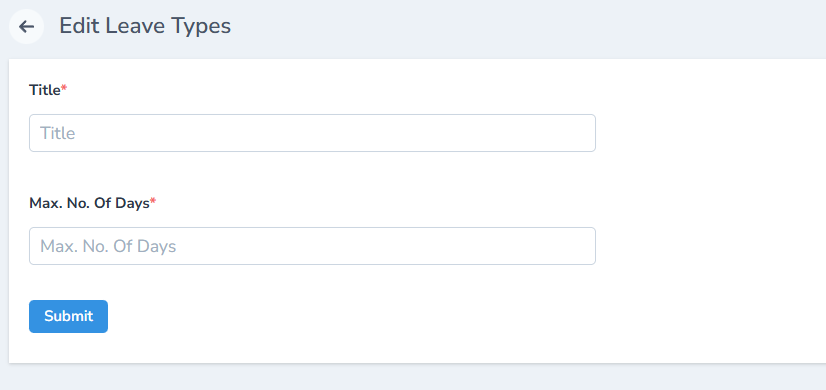
- A Leave Type Add Form opens.
2. Fill in the Leave Master fields (Extended Form)
Typical fields in the extended one-time yearly setup are:
Leave Name
- Example: “Casual Leave”, “Sick Leave”, “Maternity Leave”.
Short Code
- Example: CL, SL, ML – used in reports and quick views.
Description
- Explain when this leave can be used.
- Example: “Short-term personal work”, “Medical reasons only”, etc.
Maximum Days / Year
- Set the maximum number of days allowed per academic year.
- Example: “12” days/year for Casual Leave.
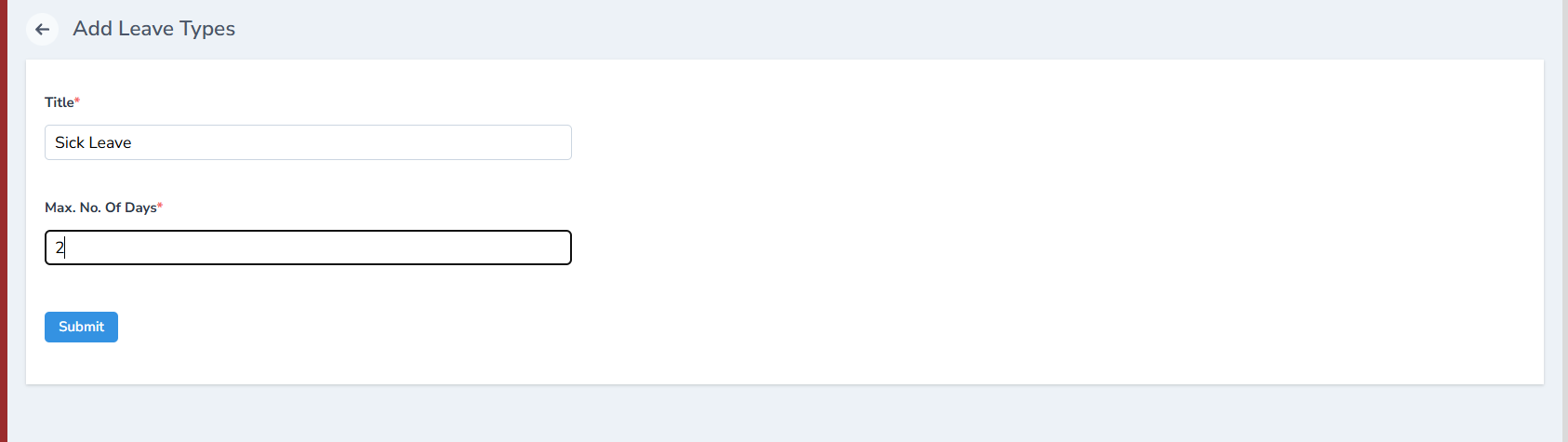
3. Submit the Leave Type
-
After filling all details, click “Submit”.
-
The system:
- Validates required fields.
- Saves the new leave type.
- Returns to the Leave Master List.
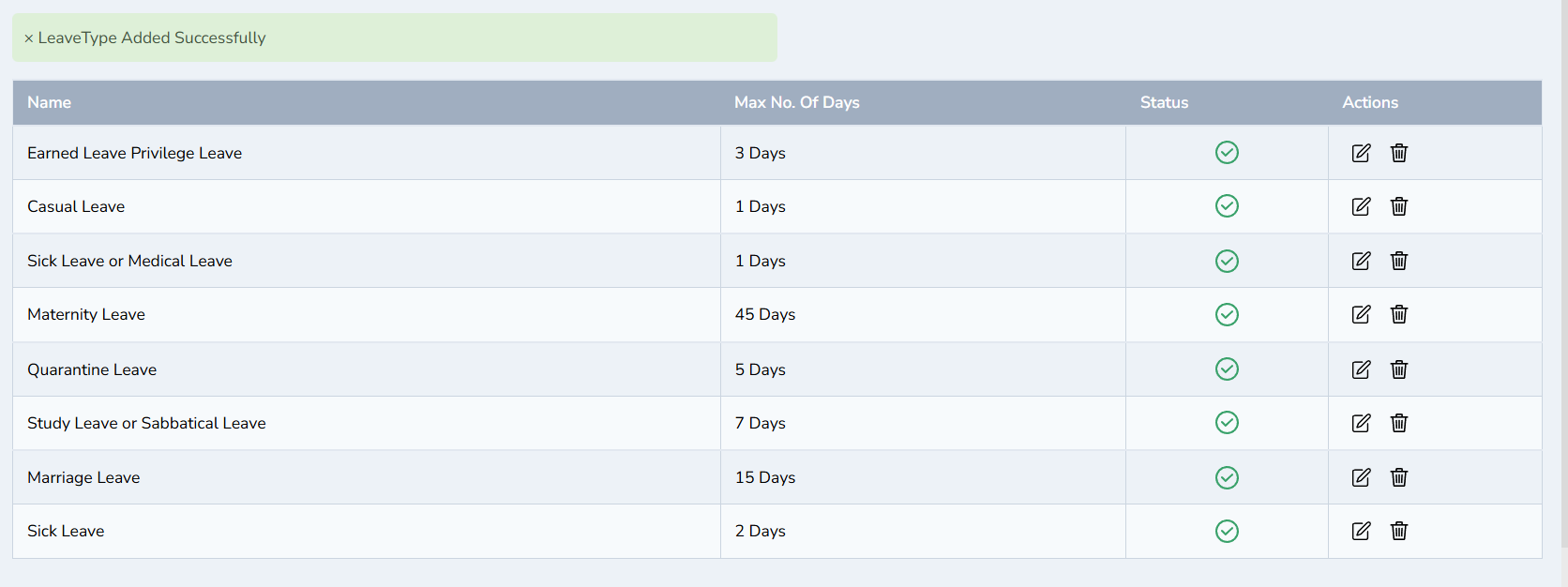
4. Verify the Leave Type in the List
- Confirm that the new leave appears in the Leave Master List.
- Check:
- Name & Short Code
- Max Days / Year
- Paid / Carry Forward flags
- Status = Active
5.Effect on Teachers & Mobile App
- Once configured:
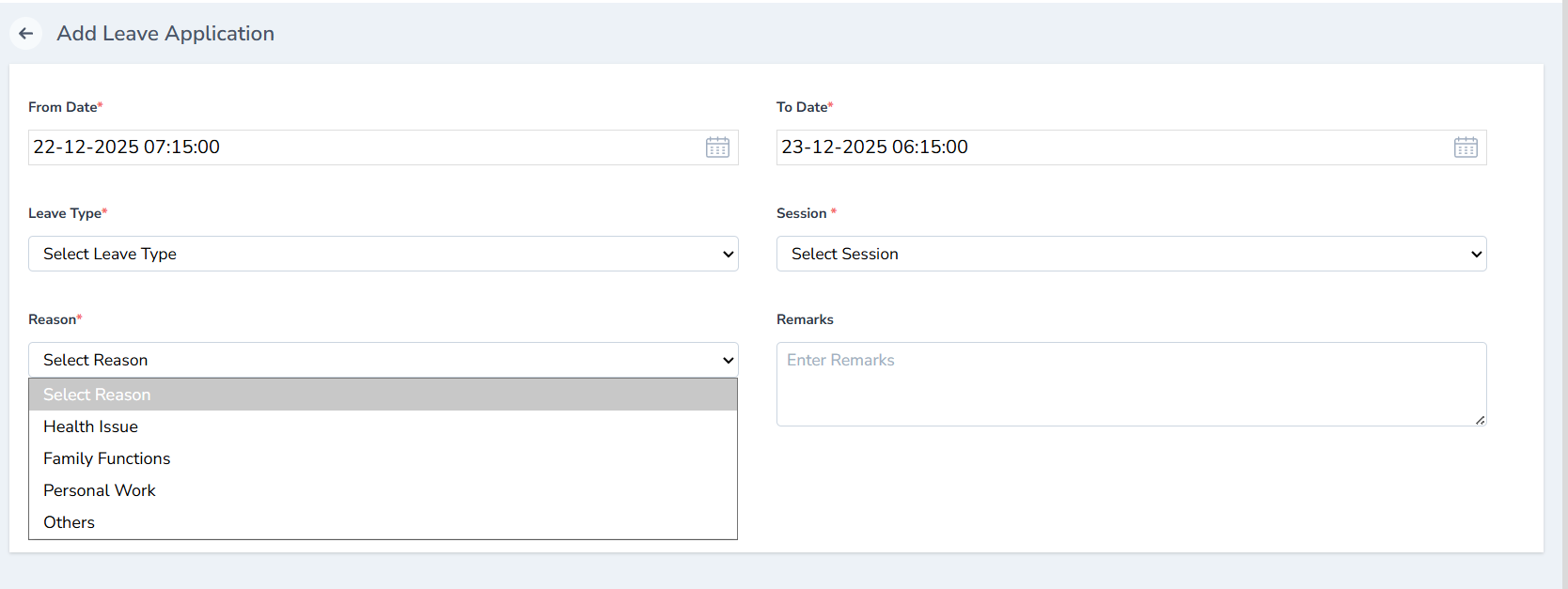
- The leave types become available in the Teacher’s Leave Application form.
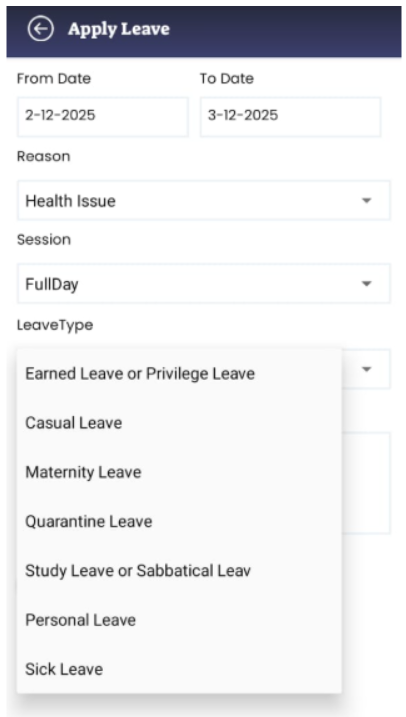
The same leave types are reflected in the Teacher mobile app leave screen.
Editing or Deactivating a Leave Type
Role of logged-in user: Admin
1.Locate the leave type in the list Go to Settings → Leave Master.
Find the row for the leave you want to modify.
2.Edit a Leave Type
- Click the Edit icon in the Actions column.
- Update fields like:
- Max Days / Year
- Description
- Status (Active/Inactive)
- Click Submit to save changes.

3.Delete a Leave Type (Use with Caution)
- Click the Delete icon if it is a newly added type not yet used.
- Confirm deletion when prompted.
Teacher Leave Application (Teacher)
Purpose
Teachers can apply for leave online instead of using paper forms. All submissions are recorded and routed to the Principal for approval. The available Leave Types come from Leave Master.
Role & Access
Role of logged-in user: Teacher
Login using: Teacher email and password provided by Admin
Logging in as Teacher
1.Open the Teacher portal URL in your browser or open the Teacher App.
2.Enter:
- Username – Email address assigned by Admin
- Password – Default or updated password
3.Click Login.
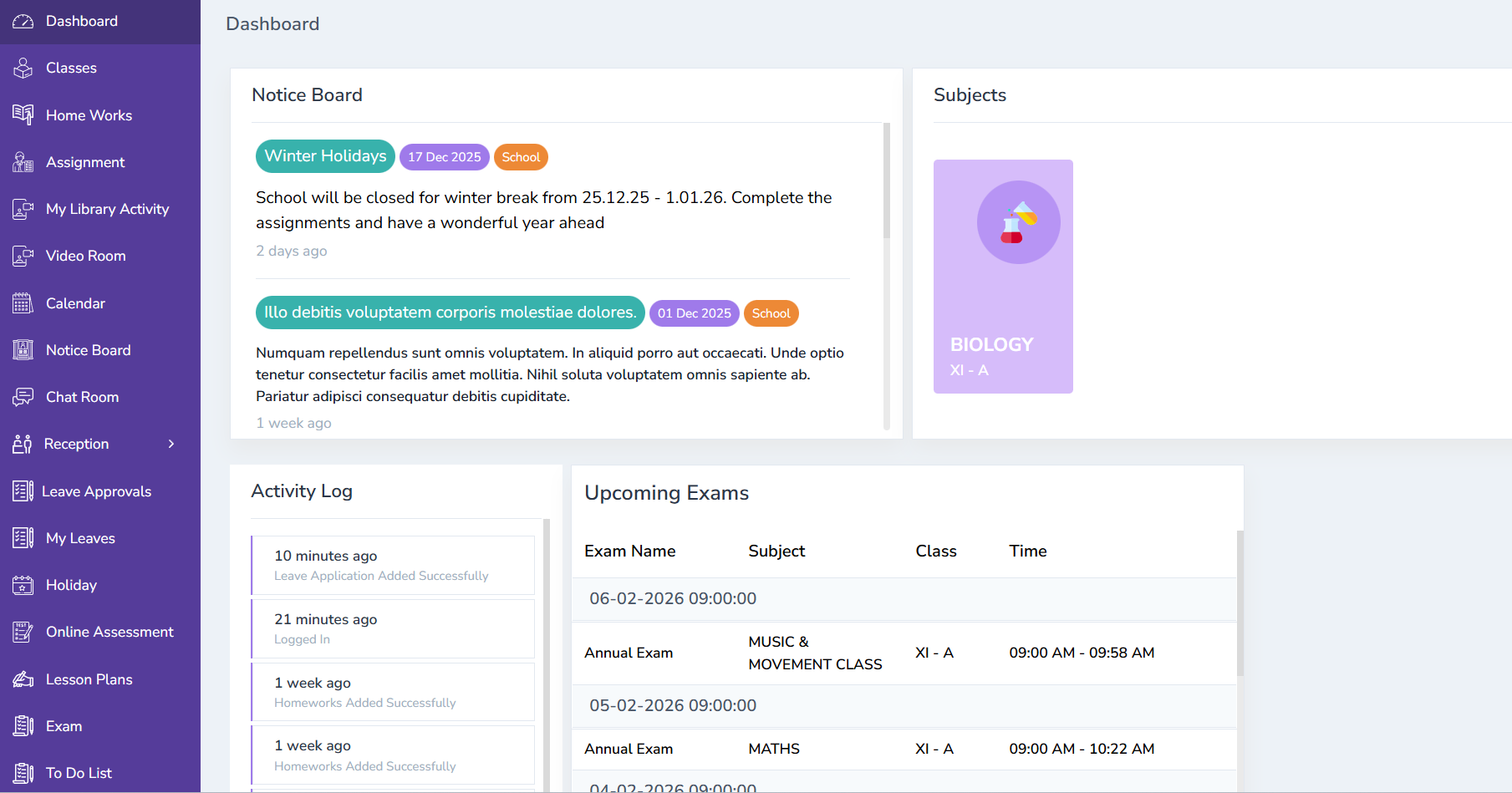
After successful login, the system opens the Teacher Dashboard.
Opening the Leave Module
1.From the Teacher Dashboard, locate the Leave option in the main menu or tile view.
2.Click Leave to open the Leave screen.
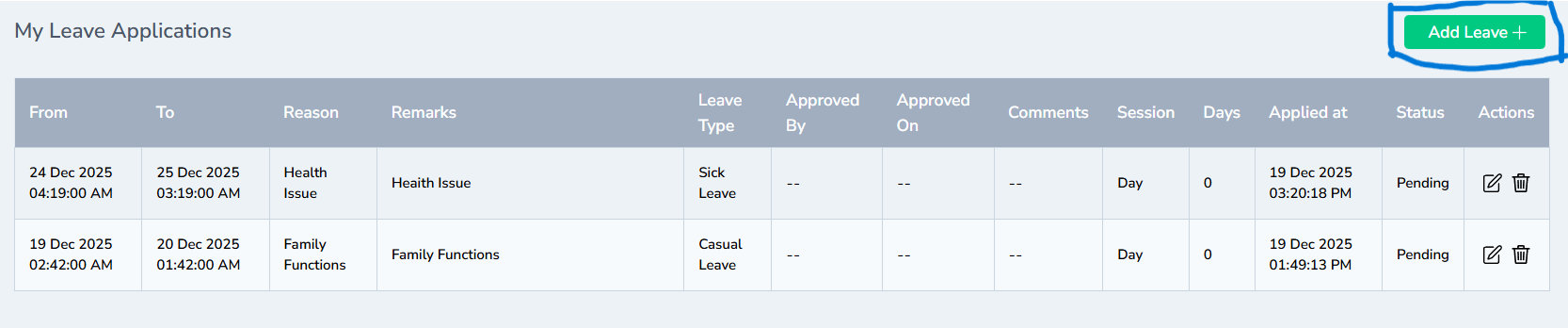
3.On the Leave screen, you will usually see:
- A list of previously applied leaves (with Status).
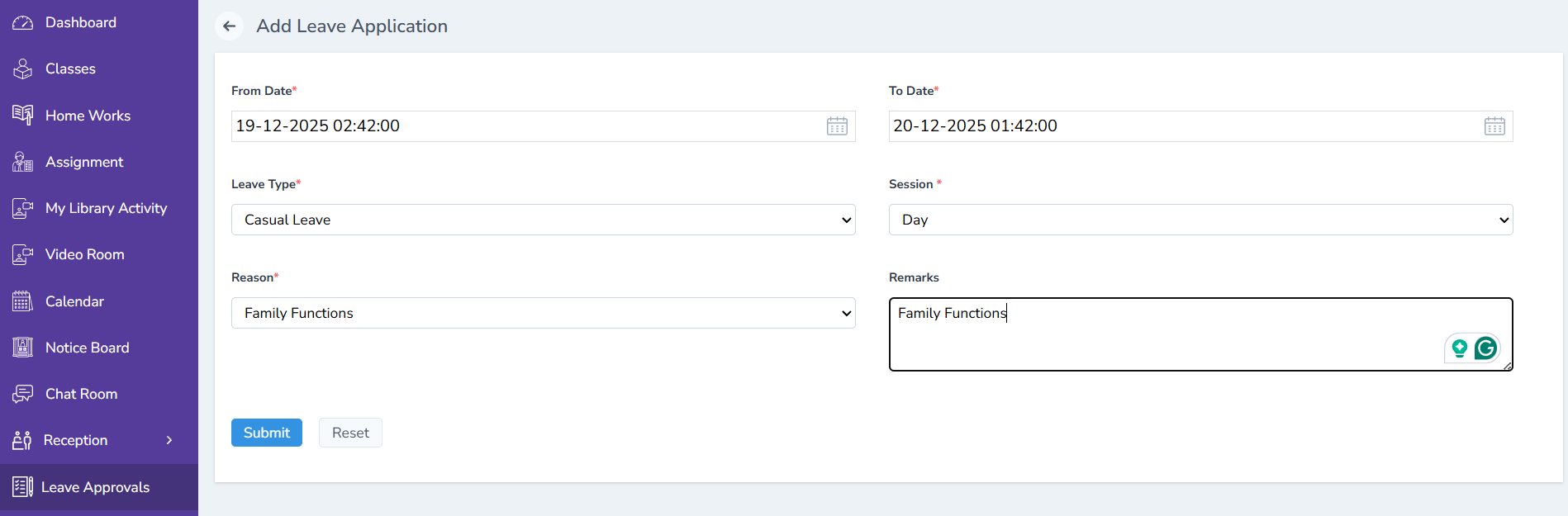
- A button at the top-right: “Add Leave”.
Applying for a New Leave
Role of logged-in user: Teacher
1.Click “Add Leave”
- On the top-right of the Leave screen, click “Add Leave”.
- A Leave Application Form opens.
2.Fill in Leave Details In the Leave Application form, enter:
- Leave Type
-
These values come from Leave Master configured by Admin.
-
Select from the dropdown (CL, SL, PL, ML, etc.)
- Start Date
- Choose the first day of your leave from the date picker.
- End Date
- Choose the last day of your leave.
- For a one-day leave, Start Date = End Date.
- Reason for Leave
- Provide a clear reason (e.g., “Medical appointment”, “Family emergency”, “Exam duty”, etc.).
3.Review & Submit
- Double-check dates, leave type, and reason.
- Click “Submit”.
4.After submission:
The system stores the leave request.
The initial Status is set to Pending.
The request becomes visible in the Principal’s Leave Approval screen.
Viewing Leave History & Status
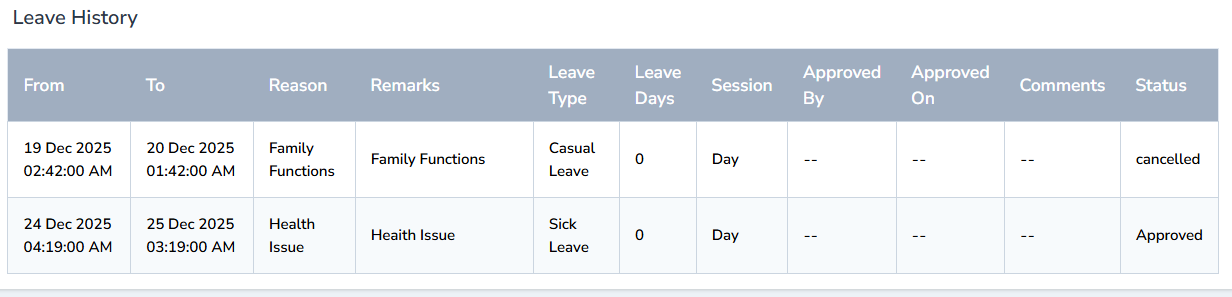
1.Go to Leave → Leave History (tab or link, depending on UI).
2.The history screen shows:
- Date range of each leave
- Leave Type
- Reason
- Status:
- Pending – Waiting for Principal’s action
- Approved – Approved by Principal
- Rejected – Rejected by Principal
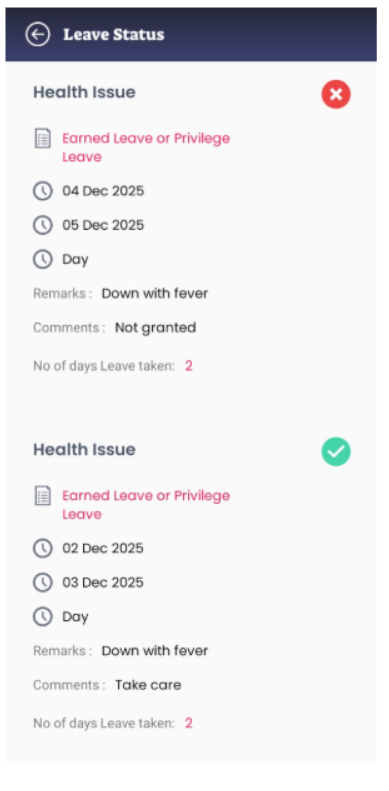
3.Using Mobile App
The same leave details and statuses are visible in the Teacher Mobile App under the Leave section.
Principal Leave Approval (Principal)
Purpose
The Principal is responsible for approving or rejecting leave requests submitted by teachers, taking into account timetable, exams, and academic continuity. Once the Principal acts, the teacher is notified and the record is updated.
Role & Access
Role of logged-in user: Principal
Login using: Principal credentials created by Admin
Logging in as Principal
1.Open the Principal Portal URL.
2.Enter Principal username and password.
3.Click Login.
After login, you land on the Principal Dashboard.
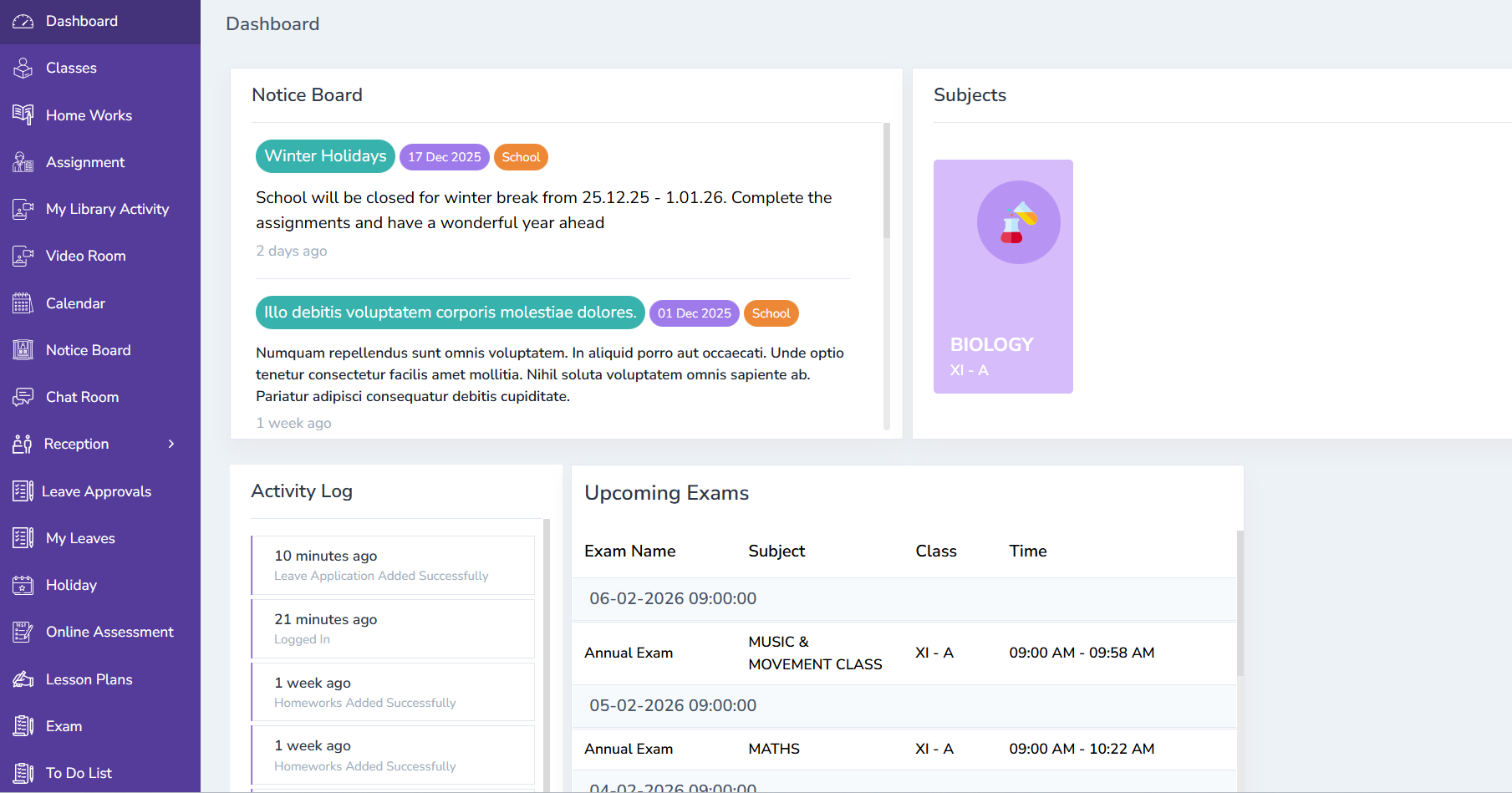
Opening the Leave Approvals Screen
1.Locate the left-side menu.
2.Click “Leave Approvals”.
3.The Leave Approval List View appears with all Pending requests.
Understanding the Leave Approval List
Each row typically contains:
- Teacher Name
- Leave Type
- Start Date – End Date
- Reason
- Status (Pending / Approved / Rejected)
- Action (icons for Approve / Reject)
Approving or Rejecting a Leave
Role of logged-in user: Principal
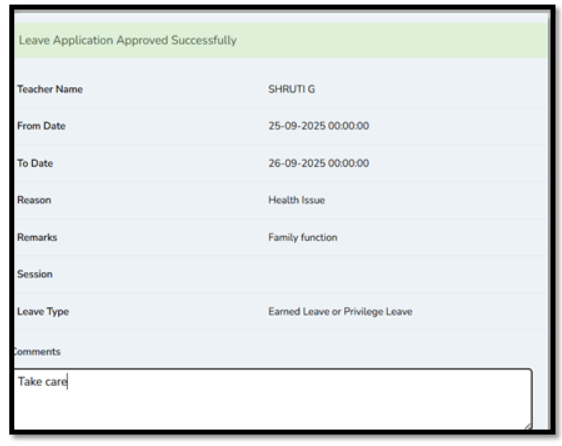
1.Review the Leave Request
-
Read the Leave Type, date range, and reason.
-
Optionally check teacher’s timetable or other workload if needed.
2.Approve a Leave
- Click the ✔ (tick) icon in the Action column for that row.
The system:
- Updates Status to Approved
- Makes the approval visible in the teacher’s Leave History.
3.Reject a Leave
-
Click the ✖ (cross) icon to Reject the leave.
-
The system:
- Updates Status to Rejected.
- Sends a notification to the teacher (applier) about the rejection as per your note.
4.Effect on Teacher View
- Teacher’s Leave History now shows Status = Approved or Rejected for that request.
- The teacher can also see the updated status in the Mobile App where applicable.

This completes the Leave workflow:
Admin → Teacher → Principal
1.Admin defines leave types in Leave Master
2.Teacher applies for leave
3.Principal approves/rejects the request
Staff Attendance Management (Admin)
Purpose
While the leave module manages individual absences with approval, Staff Attendance records** daily presence/absence** of all teaching staff. In your configuration, attendance is marked for two sessions:
- Forenoon (FN)
- Afternoon (AN)
This is done by Admin, not by Principal or Teacher.
Role & Access
- Role of logged-in user: Admin / Office Admin / HR (whoever manages staff attendance)
-Login using: Admin-level credentials with access to Users → Staff.

Opening the Teaching Staff List
1.Log in as Admin.
2.From the left sidebar, click “Users”.
3.Under Users, click “Staff”.
4.Click “Teaching” to view all teaching staff.
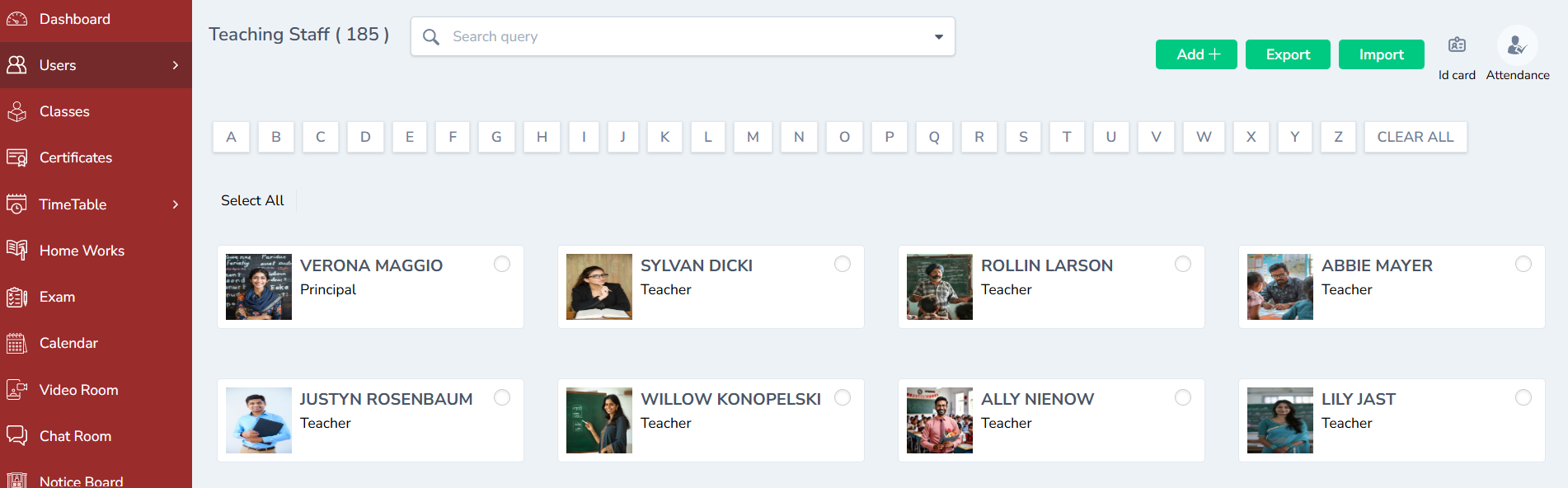
The Teaching Staff List shows all staff for whom you will mark attendance.
Opening the Attendance Entry Form
1.On the top-right corner of the Teaching Staff List page, click the “Attendance” button.
2.The system opens a new attendance entry form.
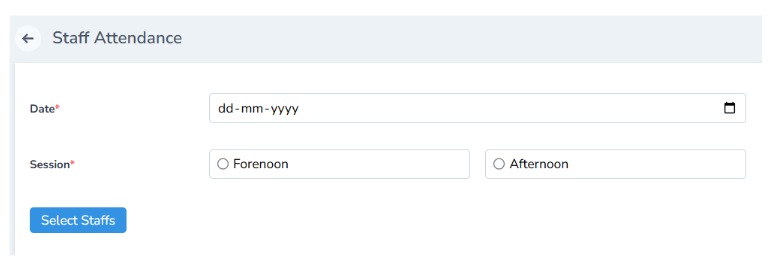
Selecting Date and Session (Two Sessions)
In the Attendance Entry form:
1.Select Date
- Click on the date picker.
- Choose the date for which you are marking attendance (usually today).
2.Select Session
Choose one of:
- Forenoon – morning session
-Afternoon – afternoon session
-(If configured) Full Day – where needed
3.The system records attendance session-wise, so you may repeat this process twice daily (FN & AN) if required.
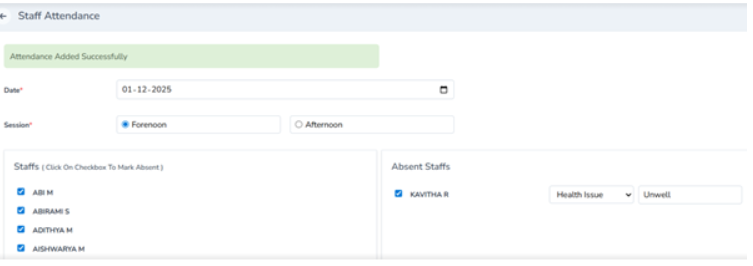
Marking Present & Absent Staff
Role of logged-in user: Admin
1.Default State – All Present
- When the attendance form loads:
- All teaching staff are selected (checked) by default, indicating Present.
2.Marking Absentees
-
For any staff who are Absent, uncheck the box next to their name.
-
As you uncheck, the Absentees List on the right automatically updates to show who is absent.
3.Cross-Checking Absentees
-
Use the Absentees List to verify:
-
Leave requests approved for that day
-
Unplanned absences
-
-
Make corrections if necessary (re-check or uncheck boxes).
Saving Attendance
1.After verifying:
- Date
- Session (FN/AN)
- Absentees List
2.Click “Save” to submit the attendance.
-
The system:
▪ Validates the data.
▪ Saves attendance for that date & session.
▪ Confirms with a success message (e.g., “Attendance saved successfully”).
3.Effect on Teacher Profile
-
Once saved:
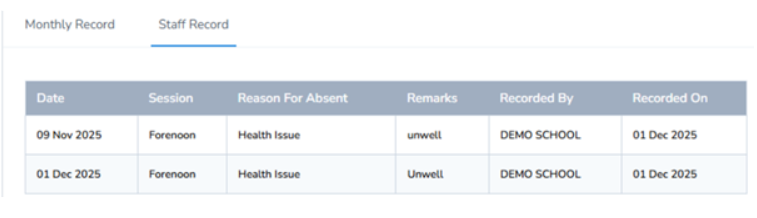
▪ The attendance entry is now visible in each teacher’s Attendance tab inside their profile.
-
This can be used later for:
▪ Monthly / yearly attendance reports
▪ Payroll integration (if applicable)
End-to-End Flow Summary
1.Admin – Leave Master Setup
- Configures extended Leave Master fields (Leave Name, Code, Max Days, Paid, Carry Forward, Status) once per academic year.
2.Teacher – Apply for Leave
- Logs in as Teacher, opens Leave → Add Leave, selects type & dates, and submits.
3.Principal – Approve/Reject
-
Logs in as Principal, opens Leave Approvals, and uses ✔ / ✖ to approve or reject.
-
If rejected, the applier (teacher) receives a notification and can see updated status.
4.Admin – Daily Staff Attendance
-
Logs in as Admin, opens Users → Staff → Teaching → Attendance, picks date & session (Forenoon / Afternoon), unchecks absentees, and saves.
-
Attendance reflects in each teacher’s Attendance tab.