How Admin Adds Fees - Step-by-Step Procedure
This guide shows how an Admin creates structural fees (recurring/standard fees) and other fees (one-time / ad hoc) so they appear in student profiles and on the Accountant dashboard.
Menu Navigation
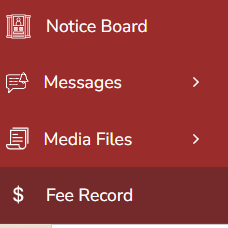
Menu path: Admin → Fee Management → Fee Records

Decide Fee Type
Before adding, decide whether the fee is:
- Structural Fee — standard, recurring fees (tuition, transport, lab).
- Other Fee — one-time or ad-hoc charges (exam fine, book fee).
Add / Record Fee Type
- Click Fee Records (or Fee Types).
- Click Add New (or Add Fee Type).
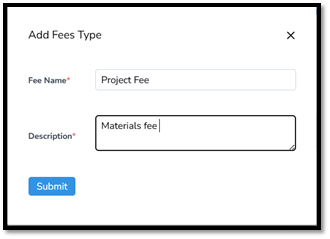
- In the form, enter:
- Fee Type / Name (e.g., Tuition, Transport, Exam Fine)
- Description (optional — brief purpose)
- Click Submit / Save. Result: New fee type is created and available when adding specific fee entries.
Create all required fee types first (tuition, transport, admission, etc.) so they appear in dropdowns later.
Add a Specific Fee Record (Structure or Other Fee)
- From Fee Records, click Add Fee (or Add New Fee).
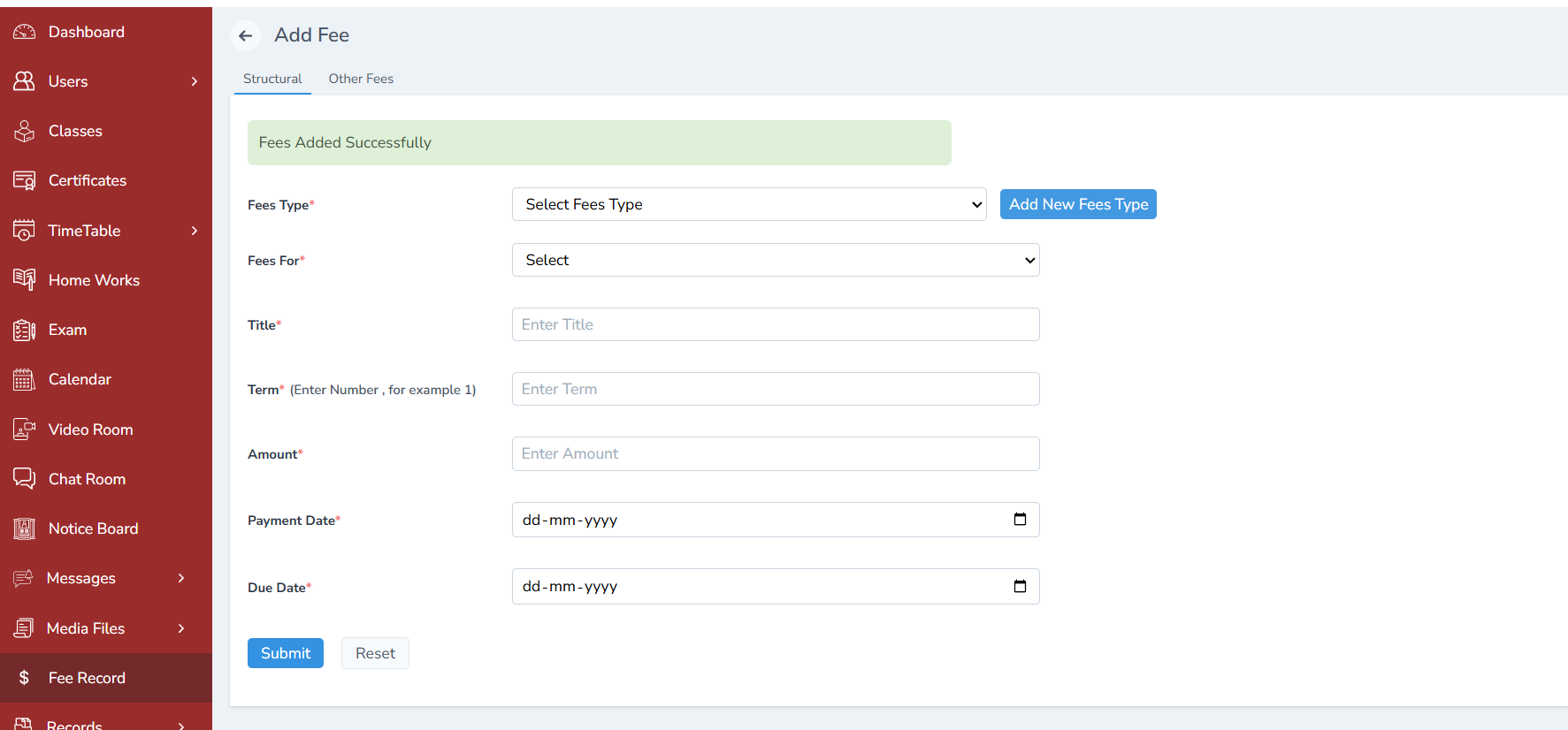
- Complete the fee form fields:
- Fee Name / Title: Clear title (e.g., “Tuition — Grade 2 — Term2”)
- Fee Type: Choose from the previously created types (Structural / Other)
- Fee For: Select target (Class / Student / Section / Category)
- Select Class / Section / Student(s): Pick the class this fee applies to
- Term / Session: (if applicable) Term 1 / Semester / Academic Year
- Amount: Enter the fee amount
- Payment Date / Start Date: Date from which payment window opens
- Due Date / Last Date: Final date for payment
- Click Submit / Save.
Verify in Student Profile
- Open a sample Student Profile (one of the targeted students).
- Go to the Fee / Fee Records section.
- Confirm the new fee (title, amount, due date) appears for that student.
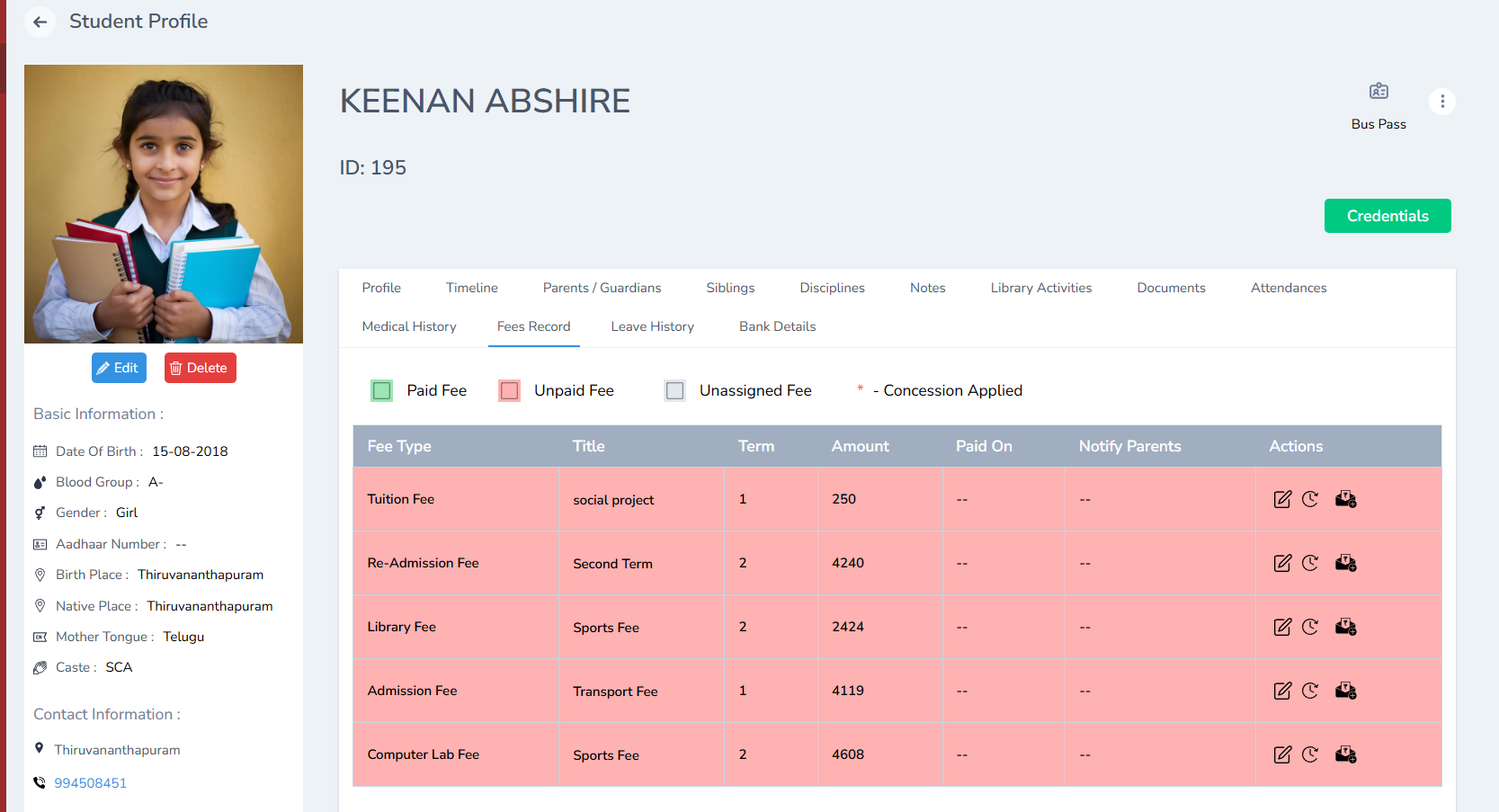
Accountant Dashboard Reflection
-
The newly added fee will reflect on the Accountant Dashboard under:
-
Unpaid Fees / Pending Collections (if not yet paid)
-
Fee Due Dates / Upcoming Payments (based on payment/due date)
-
Fee Reports → administrators / accountants can view totals by class, term, or status
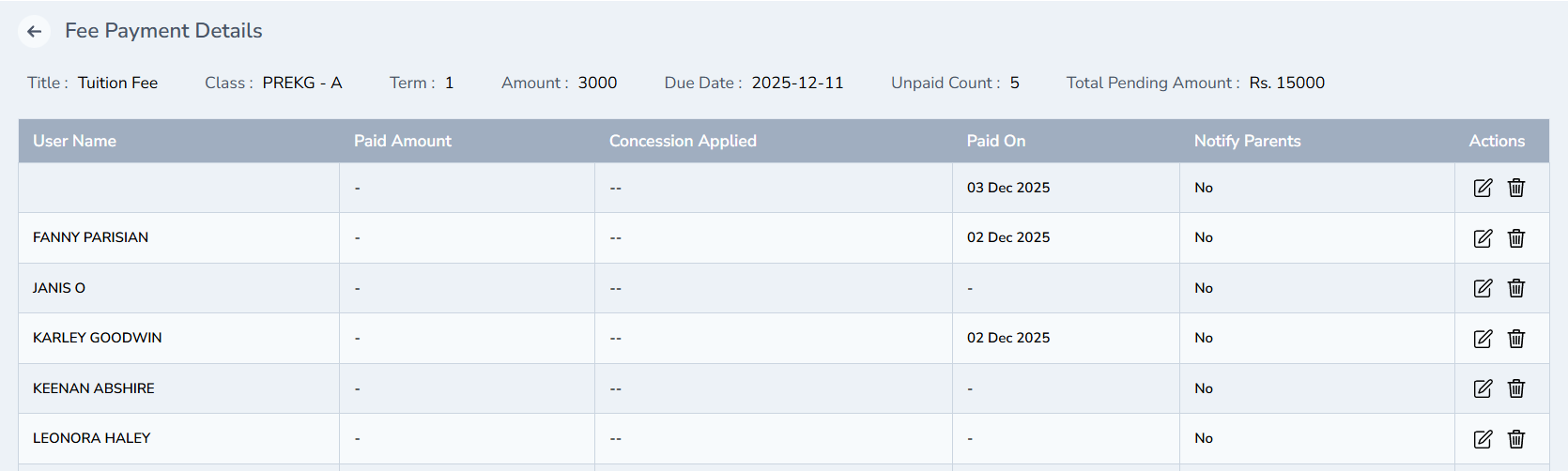
Accountant profile’s dashboard view

The admin can view the list of names by clicking the view button
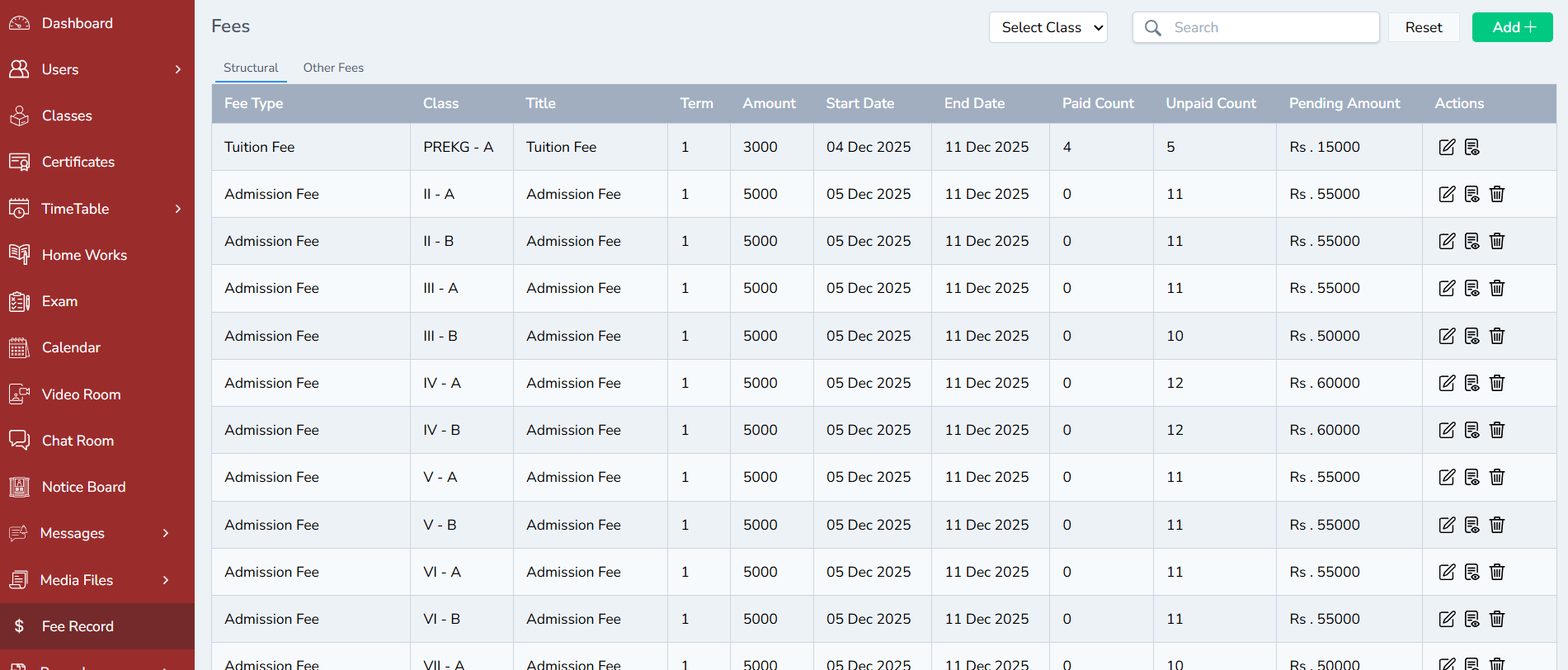
Once clicked the list of names will displaced